

The Quick Guide to Organizing Your Digital Files in Under an Hour
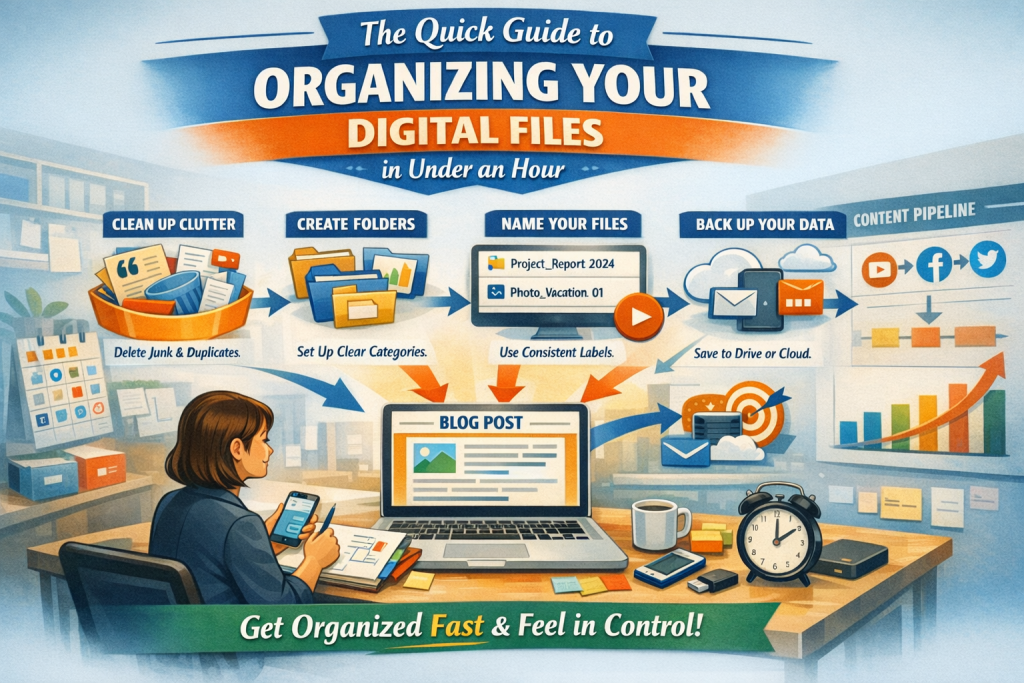
How do you organize digital files quickly and effectively?
A clear, intuitive digital filing system saves time, reduces stress, and makes your entire workflow feel lighter. Most people assume digital organization requires a full weekend and a color‑coded spreadsheet, but with the right structure, you can transform a chaotic computer into a clean, functional workspace in under an hour. The key is to focus on decisions that create long‑term clarity rather than perfection. This guide walks you through a fast, effective process that brings order to your files and sets you up for smoother digital habits going forward — without overwhelm, overthinking, or endless sorting.
A clear, intuitive digital filing system saves time, reduces stress, and makes your entire workflow feel lighter. Most people assume digital organization requires a full weekend and a color‑coded spreadsheet, but with the right structure, you can transform a chaotic computer into a clean, functional workspace in under an hour. The key is to focus on decisions that create long‑term clarity rather than perfection. This guide walks you through a fast, effective process that brings order to your files and sets you up for smoother digital habits going forward.
Why a One‑Hour Digital Reset Works
Digital clutter builds slowly—downloads you never sorted, screenshots you meant to delete, documents saved with names like Final_v3_REALFINAL.pdf. Over time, this creates friction every time you try to find something. A one‑hour reset works because it focuses on the highest‑impact actions:
- Creating a simple, intuitive structure
- Removing unnecessary files
- Renaming what matters
- Backing up what you want to keep
You’re not aiming for a perfect system—you’re building a functional foundation you can maintain with minimal effort.
Step 1: Create a Folder Structure That Makes Sense
A good folder structure is the backbone of digital organization. It should reflect how you think, not how someone else organizes their files. The goal is to create broad categories that reduce decision fatigue and make retrieval effortless.
Start with 4–6 main folders
Examples include:
- Work
- Personal
- Photos
- Finances
- Creative Projects
- Admin / Life
These categories should feel obvious and intuitive. If you have to think too hard about where something belongs, the category is too narrow.
Add subfolders only where needed
Inside each main folder, create subfolders that reflect natural groupings:
- Work → Clients → Client Name
- Photos → 2024 → Events
- Finances → Taxes → 2023
Avoid going more than three levels deep. The goal is clarity, not complexity.
A quick test
If you can explain your folder system to someone else in under 30 seconds, it’s simple enough.
Step 2: Declutter Ruthlessly
Once your structure is ready, it’s time to clear out the noise. This is where you reclaim space, reduce overwhelm, and make your system usable.
Start with the biggest clutter zones
These usually include:
- Downloads folder
- Desktop
- Documents folder
- Screenshots folder (if your system creates one)
These areas accumulate the most junk because they’re the default landing spots for new files.
Delete duplicates and outdated files
Be decisive. Ask yourself:
- Have I used this in the last year?
- Is this file still relevant?
- Do I have a newer version?
- Is this something I can re‑download later if needed?
If the answer is no, delete it.
Move important files into your new structure
Anything worth keeping should have a home. If you’re unsure where something belongs, create a temporary folder called To Sort Later—but keep it small and revisit it within a week.
Step 3: Rename Files for Clarity
A file name is a tiny piece of metadata that saves you hours over time. Renaming files is one of the fastest ways to make your digital world more searchable and less chaotic.
Use descriptive, consistent names
Good file names include:
- What the file is
- Who it relates to
- The date (if relevant)
Examples:
- Invoice_ClientName_2024‑02.pdf
- Resume_NeilMilliner_2026.pdf
- BlogDraft_CreativeChallenge_Notes.docx
Add dates in a consistent format
Use YYYY‑MM‑DD so files sort chronologically:
- 2025‑11‑ProjectProposal.pdf
- 2024‑07‑FamilyReunionPhotos.zip
Avoid vague names
Skip labels like:
- “Final”
- “Final2”
- “UseThisOne”
- “Screenshot 2026‑03‑14 at 9.23 AM”
Rename screenshots immediately or delete them.
Step 4: Back Up and Sync with Cloud Storage
A clean system is only useful if it’s safe. Cloud storage protects your files from loss and makes them accessible across devices.
Choose a cloud service that fits your ecosystem
Popular options include:
- Google Drive — great for collaboration and cross‑platform use
- Dropbox — simple, reliable syncing
- iCloud Drive — ideal for Apple users
- OneDrive — integrates well with Windows and Microsoft Office
What to store in the cloud
- Important documents
- Photos and videos
- Work files
- Anything you want to access from multiple devices
What to keep local
- Large files you rarely use
- Sensitive information (unless encrypted)
- Temporary project files
Cloud storage gives you peace of mind and reduces the risk of losing important work.
Step 5: Build a Simple Maintenance Habit
A one‑hour reset is powerful, but long‑term clarity comes from small habits. You don’t need a complicated system—just a few consistent practices.
Weekly 5‑minute tidy
- Clear your desktop
- Empty your downloads folder
- Delete unnecessary screenshots
- Move new files into your structure
Monthly 10‑minute review
- Archive completed projects
- Update your folder structure if needed
- Remove outdated files
Quarterly deep clean
- Review cloud storage
- Delete old backups
- Reorganize large categories like photos or work archives
These small habits prevent clutter from creeping back in.
A Sample 60‑Minute Workflow
If you want a quick, structured plan, follow this timeline:
Minutes 0–10
Create your main folders and subfolders.
Minutes 10–25
Clear your desktop and downloads folder.
Minutes 25–40
Sort important files into your new structure and delete the rest.
Minutes 40–50
Rename key files for clarity and consistency.
Minutes 50–60
Set up cloud backups and sync your most important folders.
In one focused hour, your digital world becomes dramatically easier to navigate.
Why Digital Organization Improves Productivity and Peace of Mind
A clutter‑free digital space reduces cognitive load. When your files are easy to find, your brain doesn’t waste energy searching, guessing, or recreating lost work. You move faster, think more clearly, and feel more in control.
Digital organization also:
- Reduces stress
- Improves focus
- Saves time
- Supports better decision‑making
- Makes creative work smoother
A clean digital environment is a form of self‑care—one that pays off every single day.
If you were to start this one‑hour reset today, which area feels like it needs attention first—your desktop, downloads folder, documents, or photos?
- grab your copy of Why People Ghost You
- check out I’m Married, Now What?
- dive deeper with How to Train Your Human