

6 Easy Methods to Connect an Audio Mixer to Your Computer for Mac and PC Users
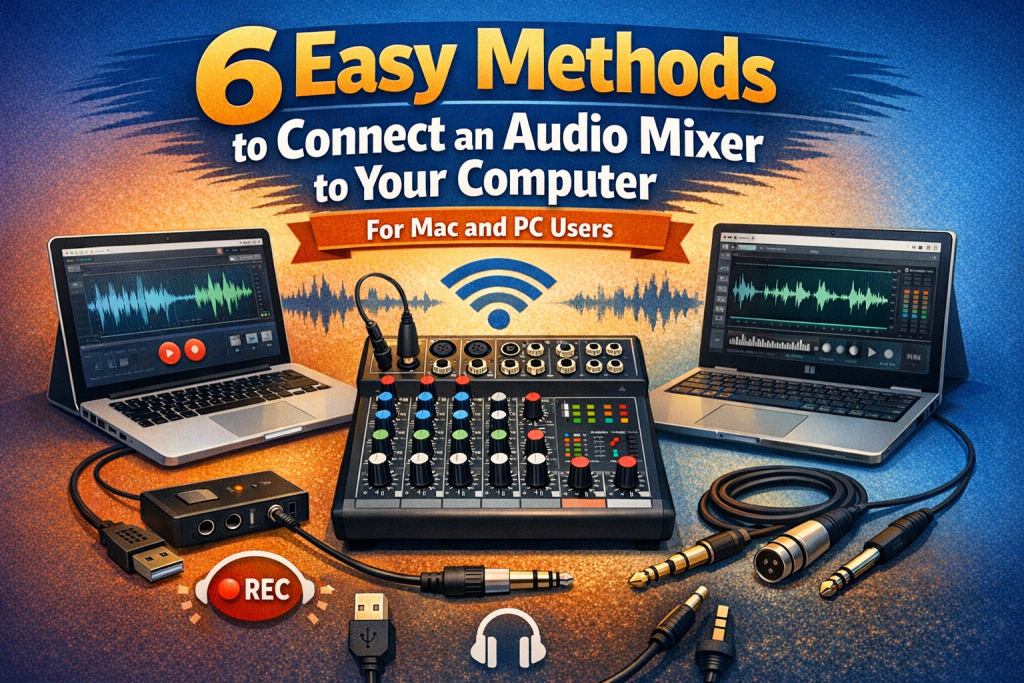
6 Easy Methods to Connect an Audio Mixer to Your Computer for Mac and PC Users
Whether you’re recording music, producing podcasts, or livestreaming, connecting an audio mixer to your computer is essential for better control over sound quality and inputs. Fortunately, it’s easier than ever to link your audio mixer to your computer—whether you’re using a Mac or PC.
Below are six simple, reliable methods to connect your audio mixer to a computer for seamless audio production.
1. Using a USB Audio Interface
A USB audio interface is one of the most reliable and high‑quality ways to connect your mixer to a computer. It converts the analog signal from your mixer into a digital format your computer can process.
What You’ll Need
- USB audio interface
- XLR or 1/4″ cables
How to Connect
- Connect your mixer’s main output to the input of the USB audio interface.
- Connect the interface to your computer via USB.
- Install any required drivers.
- Select the interface as your input/output device in your DAW or system audio settings.
Why Use This Method: It offers the best audio quality, low noise, and full control over gain staging and routing.
2. Using the Mixer’s Built‑In USB Output
Many modern mixers include a built‑in USB interface, making connection incredibly simple.
What You’ll Need
- Mixer with USB output
- USB cable
How to Connect
- Plug the USB cable into the mixer’s USB port.
- Connect the other end to your computer.
- Your computer should automatically recognize the mixer.
- Select the mixer as your input/output device in your DAW or audio settings.
Why Use This Method: It’s the easiest and fastest option if your mixer supports USB.
3. Using the Line‑In on Your Computer
Older computers often include a line‑in port (3.5mm). This allows direct connection from your mixer without an interface.
What You’ll Need
- Stereo 3.5mm to dual 1/4″ or RCA cable
How to Connect
- Connect your mixer’s main output to the computer’s line‑in port.
- Select line‑in as your input device in system settings.
- Adjust mixer volume to avoid clipping.
- Choose line‑in as your input source in your DAW.
Note: This method is convenient but may result in lower audio quality compared to USB interfaces.
4. Using a 3.5mm Audio Jack (Microphone Input)
If your computer has a microphone input, you can connect your mixer through this port. However, this often results in mono recording and reduced quality.
What You’ll Need
- 1/4″ to 3.5mm TRS cable or adapter
How to Connect
- Connect your mixer’s output to the mic input.
- Adjust mixer output to avoid overloading the mic input.
- Select “microphone” as your input device.
- Test and adjust levels.
Why Use This Method: It’s simple, but best for basic setups, not high‑quality recording.
5. Using an RCA‑to‑USB Converter
If your mixer only has RCA outputs, an RCA‑to‑USB converter provides a simple way to connect to your computer.
What You’ll Need
- RCA‑to‑USB converter
- RCA cables
How to Connect
- Connect RCA cables from your mixer to the converter.
- Plug the USB end into your computer.
- Install any required drivers.
- Select the converter as your audio input.
Why Use This Method: Perfect for DJ mixers or older mixers with RCA‑only outputs.
6. Using a Bluetooth Audio Transmitter (Wireless Option)
For a cable‑free setup, you can use a Bluetooth audio transmitter to send your mixer’s audio to your computer.
What You’ll Need
- Bluetooth audio transmitter
- Mixer with RCA, 1/4″, or XLR outputs
How to Connect
- Connect the transmitter to your mixer’s output.
- Pair it with your computer.
- Select the Bluetooth device as your input/output source.
Note: Bluetooth introduces latency and reduced audio quality, so it’s not ideal for professional recording.
Conclusion
Connecting your audio mixer to your computer can dramatically improve your recording workflow and overall sound quality. Whether you choose a USB audio interface, a mixer with built‑in USB, or one of the simpler analog methods, there’s a solution for every setup and budget.
For the best professional results, a dedicated USB interface or USB‑enabled mixer is recommended. For casual use or livestreaming, line‑in or Bluetooth options may be perfectly adequate.
Choose the method that fits your needs—and enjoy cleaner, more controlled audio in your productions.
Further Reading:
Resources to help you go deeper
- dive deeper with The Musician’s Marketing Playbook
- check out Vulnerable Creator’s Marketing Playbook
- grab your copy of Pitch Yourself Without Cringing
- explore Build a Brand That Feels Like You