

Step-by-Step Guide to Connecting Studio Monitors to an Audio Interface for Optimal Sound
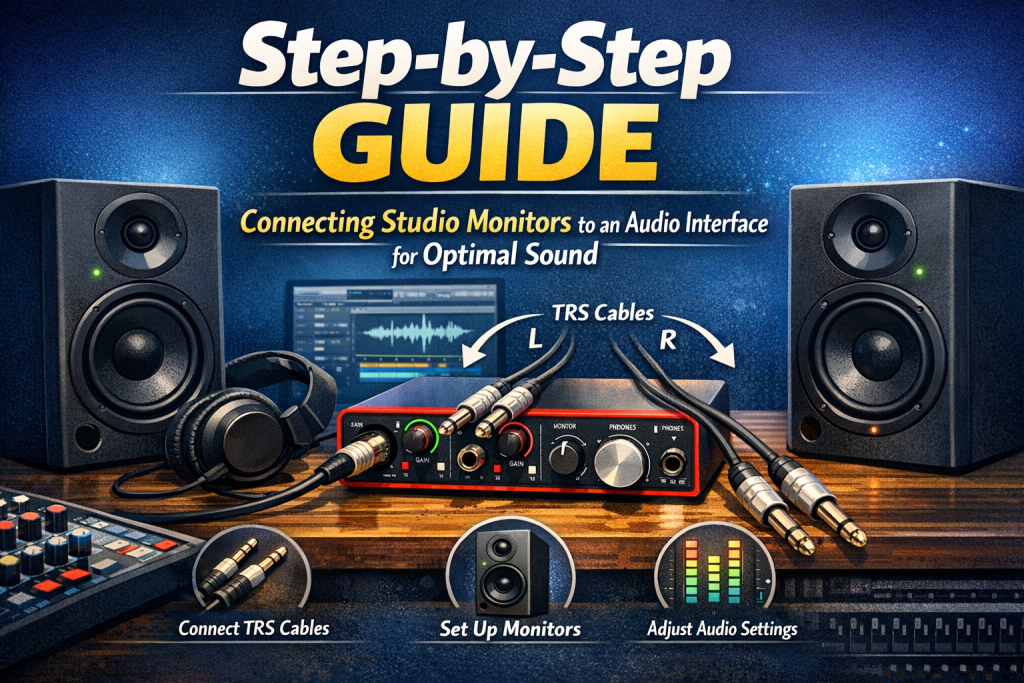
Step-by-Step Guide to Connecting Studio Monitors to an Audio Interface for Optimal Sound
Setting up studio monitors in your home studio is one of the most important steps toward achieving accurate, professional‑quality sound. Unlike consumer speakers, studio monitors provide a flat frequency response, allowing you to hear your recordings as they truly are. Connecting them properly to your audio interface ensures clean, reliable playback and mixes that translate well across all systems.
This guide walks you through each step of the setup process and highlights key considerations for optimal sound.
Why Use Studio Monitors with an Audio Interface?
An audio interface acts as the bridge between your computer and your monitors. It converts digital audio into a clean, high‑quality analog signal that your monitors can reproduce accurately.
When connected correctly:
- Studio monitors deliver a true, uncolored representation of your music.
- Mixing decisions become more reliable, especially for bass, stereo imaging, and clarity.
- Noise and interference are minimized, thanks to balanced connections and proper gain staging.
Step-by-Step Guide to Connecting Studio Monitors to an Audio Interface
Step 1: Gather the Necessary Equipment
Before you begin, make sure you have everything you need:
- Studio monitors (active/powered monitors)
- Audio interface with balanced outputs
- Balanced cables (XLR or TRS recommended)
- Power cables for both the interface and monitors
Balanced cables help reduce noise and interference, ensuring a clean signal path.
Step 2: Position Your Studio Monitors Correctly
Proper monitor placement is essential for accurate sound reproduction.
Monitor Placement Guidelines
- Create an equilateral triangle: The distance between the two monitors should match the distance from each monitor to your listening position.
- Tweeters at ear level: Angle the monitors inward so they point directly at your ears.
- Avoid corners: Placing monitors in corners exaggerates bass and causes reflections.
Step 3: Connect the Audio Interface to Your Computer
Before connecting the monitors, set up your interface:
- USB or Thunderbolt: Plug the interface into your computer using the appropriate cable.
- Install drivers: If required, download drivers from the manufacturer’s website to ensure proper functionality.
Step 4: Use Balanced Cables to Connect Monitors to the Interface
Balanced cables (XLR or TRS) are ideal because they reduce noise and interference.
Connection Options
- XLR to XLR: If both your interface and monitors support XLR, use XLR cables for the cleanest signal.
- TRS to TRS (1/4-inch): If your monitors have TRS inputs, use TRS cables from the interface’s balanced outputs.
Note: Avoid unbalanced cables (RCA or TS). They are more prone to noise and can degrade sound quality.
Step 5: Power On Your Monitors and Interface
Powering on equipment in the correct order protects your monitors from loud pops.
- Turn on the audio interface first.
- Then power on the studio monitors.
This sequence helps prevent sudden spikes that could damage your speakers.
Step 6: Adjust Volume Settings
Proper gain staging ensures clean, distortion‑free playback.
Volume Setup Tips
- Monitor volume: Set your monitors to around 70–80% of their maximum level.
- Interface output: Start low and gradually increase to a comfortable listening level.
- DAW master output: Keep it at unity gain (0 dB) to avoid clipping.
Step 7: Test the Setup
Play a track you know well and listen carefully.
Check for:
- Proper left/right channel balance
- No hum, hiss, or interference
- Clear, accurate sound across all frequencies
If something sounds off, double‑check cable connections and monitor placement.
Step 8: Optimize the Room’s Acoustics
Even with perfect connections, your room affects how your monitors sound.
Acoustic Optimization Tips
- Add acoustic treatment: Use panels and bass traps to reduce reflections and improve clarity.
- Use monitor isolation pads: These reduce vibrations and prevent your desk from coloring the sound.
Common Mistakes to Avoid
- Using unbalanced cables: Leads to noise and interference.
- Incorrect monitor placement: Results in inaccurate frequency response.
- Volume mismatch: Avoid setting monitors too high or interface output too low.
Conclusion
Connecting your studio monitors to your audio interface correctly is essential for achieving professional‑quality sound in your home studio. With proper placement, balanced cables, and thoughtful volume adjustments, you’ll enjoy accurate monitoring that reflects the true nature of your recordings. Once your setup is dialed in, you can mix and create with confidence, knowing your sound is honest and reliable.
Further Reading:
Resources to help you go deeper
- dive deeper with The Musician’s Marketing Playbook
- check out Vulnerable Creator’s Marketing Playbook
- grab your copy of Pitch Yourself Without Cringing
- explore Build a Brand That Feels Like You